Guides/Updated November 7, 2026
How to turn a 360° photo into a video for TikTok, Reels and Shorts
Social feeds don't play interactive 360° photos, but a video of the camera turning inside one works everywhere. Here's how to make one in a minute, and which settings look best.
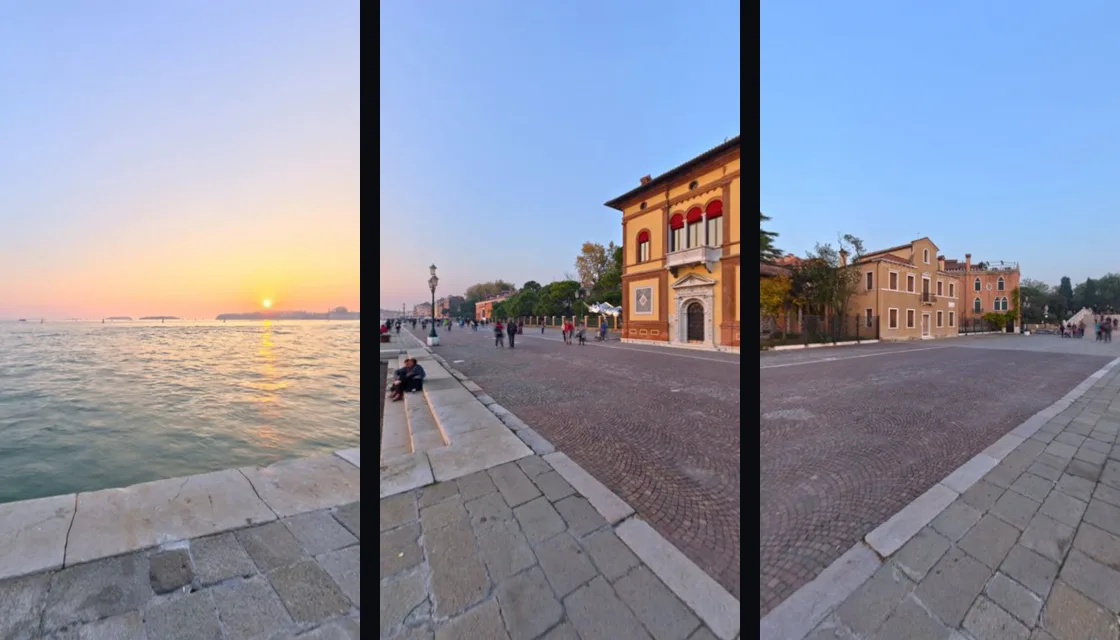
Why make a video from a 360° photo
A 360° photo is a 2:1 equirectangular image that viewers wrap around you so you can look in every direction. Facebook can show it as an interactive photo, but TikTok, Instagram Reels and YouTube Shorts can't: upload the image itself and people see a flat, stretched picture.
What every feed does play is an ordinary video. If a virtual camera stands in the middle of your panorama and turns once all the way around, the video shows the whole scene, and because the last frame lines up with the first, it loops without a jump. That's what the free 360 Photo to Video tool makes.
What you need
- A 360° panorama in JPG, PNG or WebP that is exactly twice as wide as it is tall: from a 360° camera such as Insta360, Ricoh Theta or GoPro Max, a stitching app, or an AI generated panorama.
- A recent Chrome, Edge or Safari on a computer or phone. The video is made on your own device, so nothing is uploaded.
Step by step
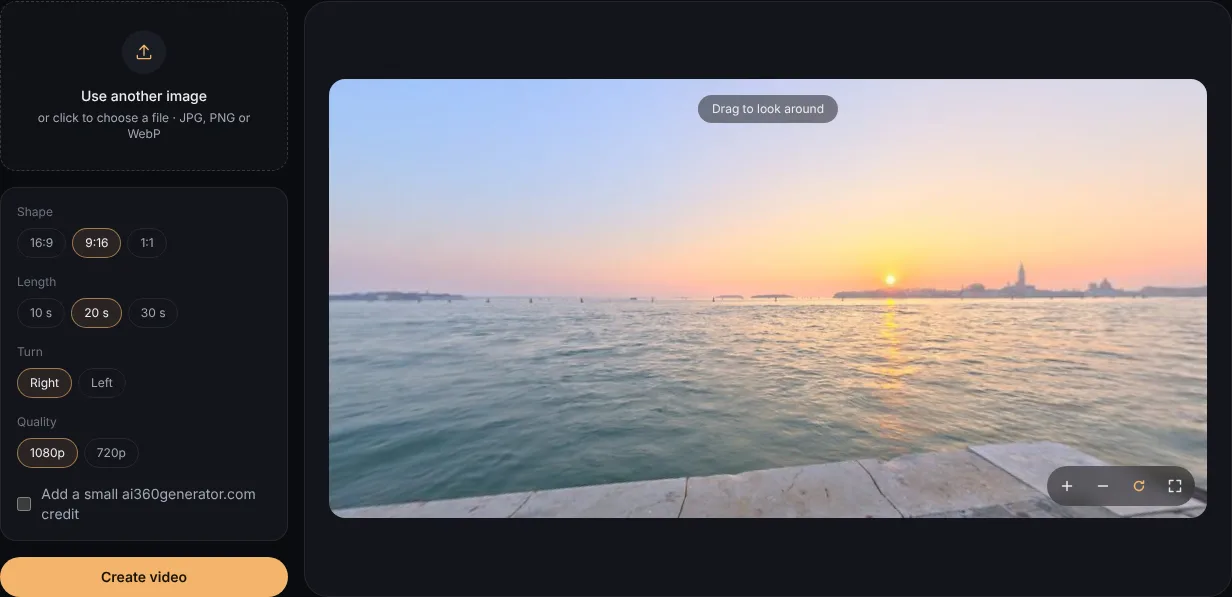
- Open 360 Photo to Video and drop your panorama onto the page, or click to choose it. It opens in a preview you can drag around.
- Under Shape, pick 9:16. That's the vertical format TikTok, Reels and Shorts are built around.
- Under Length, pick 10, 20 or 30 seconds (see below for which one), then choose which way the camera turns.
- Leave Quality on 1080p unless your device is slow, then click Create video.
- Rendering takes a few seconds to a minute, depending on your device. When the preview appears, click Download MP4.
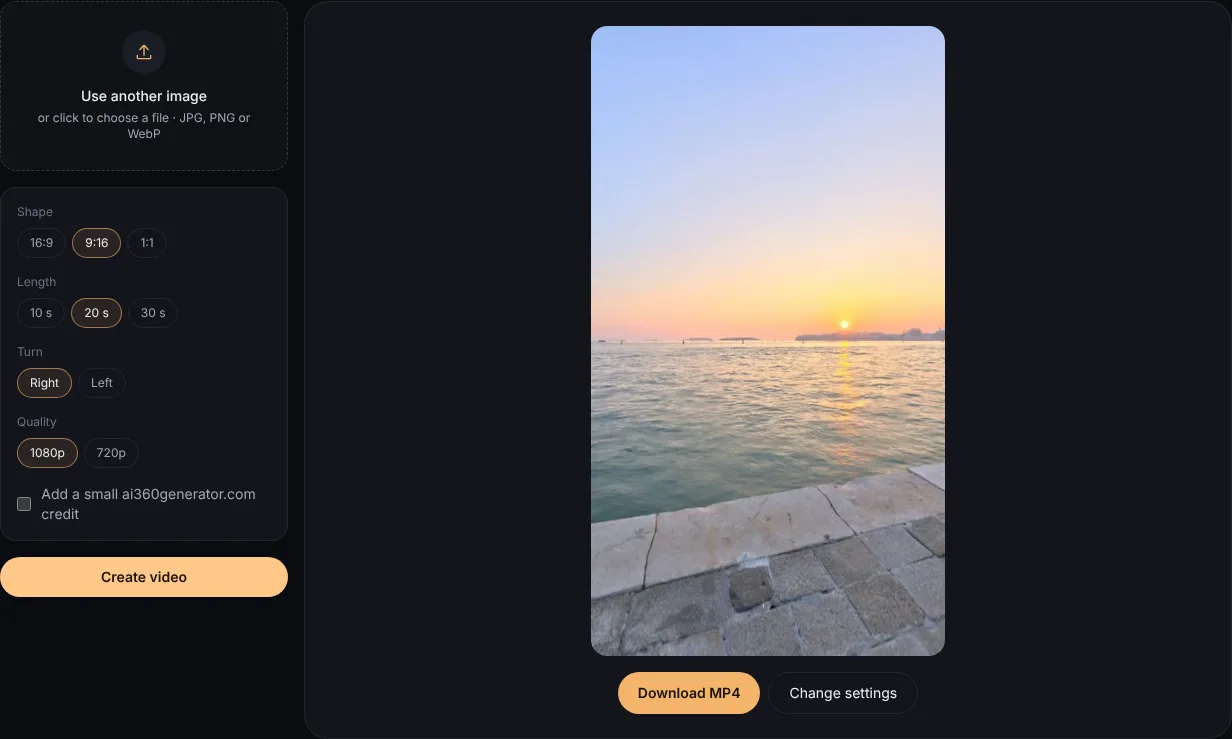
The file is a standard MP4 (H.264, 30 frames per second, 1080 × 1920 for 9:16 at 1080p), which every social app accepts. Browsers that can't encode H.264 get a WebM file instead.
Which settings to choose
- Length sets the speed. The camera always makes exactly one turn, so 10 seconds turns fast (36° a second), 20 seconds is calm (18° a second) and 30 seconds is slow enough for detailed scenes. 20 seconds is a good default; use 10 for a quick, energetic clip.
- Shape. 9:16 for TikTok, Reels and Shorts; 16:9 for regular YouTube videos and websites; 1:1 for square feed posts.
- Direction only changes which way the scene moves. Turning right feels natural to most people.
- Credit. You can add a small ai360generator.com line in the corner. It's off by default.
Tips for a better result
- Put the subject in the middle of the panorama. The video starts facing the center of the image, so that's what people see in the first second, before they decide to keep watching.
- Keep the horizon level. A tilted 360° photo makes the horizon wave up and down as the camera turns. Many 360° camera apps can level it before you export.
- Mind the top and bottom. The vertical video shows a generous slice of sky and ground but not straight up or down, so a tripod or a blurry patch at the very bottom usually stays out of frame.
- Add music and text in the app. Upload the MP4 like any other video, then add sound, captions and stickers in TikTok, Instagram or YouTube.
Don't have a 360° photo? Describe a place, or upload a regular photo, and the AI generator makes a 2:1 panorama you can turn into a video the same way.
Questions
Is the result a 360° video?
No. It's a regular flat video of the camera turning inside your panorama, which is what social feeds play. A YouTube 360° video is a different format that viewers can drag around; this tool doesn't make those.
Does it work with photos from my phone's panorama mode?
Only if the photo covers the full 360° × 180° and is exactly 2:1. A regular phone panorama is a wide strip, so the top and bottom would be missing. You can turn one into a full 360° with the photo to 360° generator first.
Is my photo uploaded?
No. The panorama is read, rendered and encoded on your device; nothing is sent to a server.